
Laptops and PCs for Beginners: A Practical Guide to Your First Computer
By Mag-Info Tech editorial · 2026-06-10
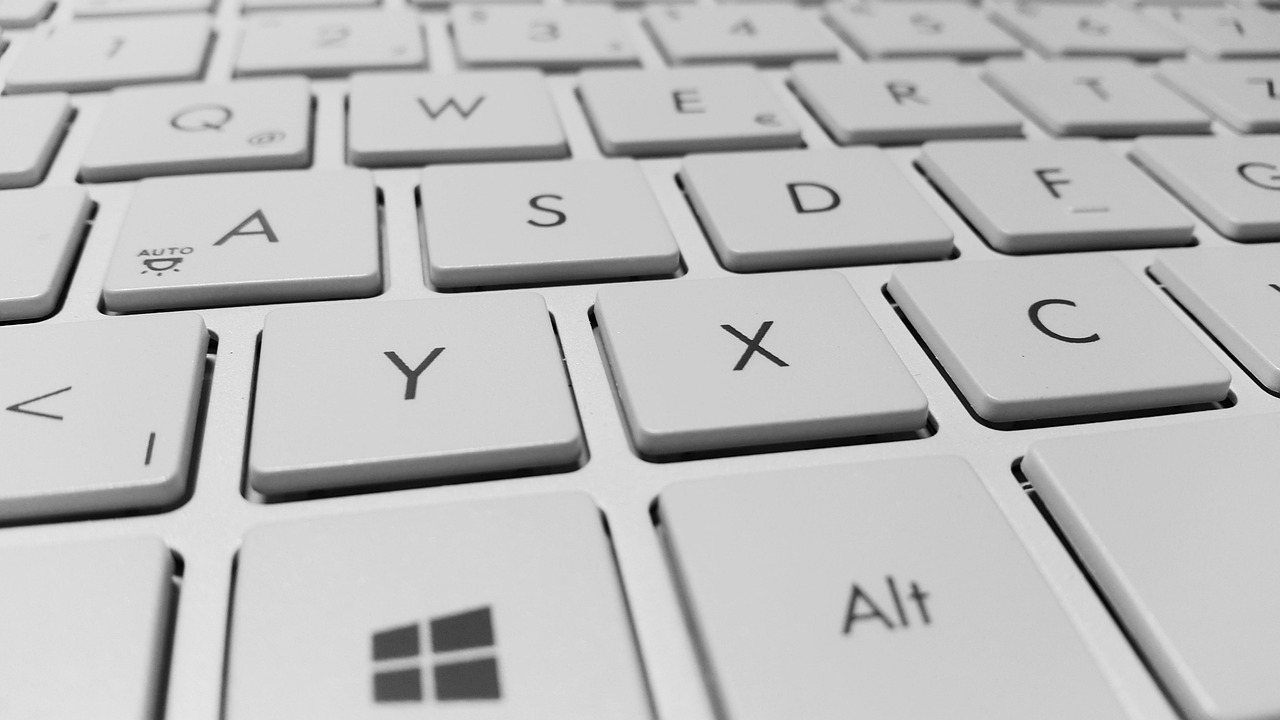
What to use a computer for as a beginner
Most beginners start with three kinds of tasks: everyday work (email, documents, video calls), AI-powered tools (chatbots, image generators, coding assistants), and occasional gaming. A modern laptop or desktop can handle all three if you choose the right balance of processor, memory and graphics. For work and AI, what matters most is a responsive operating system, enough RAM to run several browser tabs and an AI app at once, and a comfortable keyboard and screen. For gaming, you need a dedicated graphics chip and a display that refreshes quickly so movement feels smooth. If you plan to do only one of these, your priorities shift: a work-only machine can be lighter and cheaper, while a gaming rig will be heavier, louder and costlier. Many beginners end up doing a little of everything, so a mid-range system that avoids extremes is usually the safest starting point.
Another practical consideration is portability versus power. If you move between home, office or classroom every day, a thin-and-light laptop under 3.5 pounds is easier to carry than a desktop. If you stay in one place, a desktop gives you more performance for the same money and is easier to upgrade later. All-in-one desktops combine screen and computer in one unit, which saves desk space but makes repairs and upgrades harder. For AI work, portability can be useful because you may want to run local models on the go, but most AI tools still run better on a desktop with better cooling and a bigger power supply. Think about where and how you will use the machine most often before you decide on size and shape.
Key specs every newcomer should understand
The processor, or CPU, is the brain of the computer. For beginners, two families dominate: Intel Core i3/i5/i7 and AMD Ryzen 3/5/7. The first number after the brand (3, 5 or 7) indicates relative performance: 3 is entry-level, 5 is mainstream, 7 is high-performance. For everyday work and light AI use, a Ryzen 5 or Core i5 is plenty. If you plan to run heavier AI models or multitask with many browser tabs and apps, step up to a Ryzen 7 or Core i7. Clock speed (measured in gigahertz) and core count matter, but comparing them across brands is tricky without benchmarks; a good rule is to trust the 3/5/7 naming and read recent reviews from reputable outlets.
Memory, or RAM, keeps your apps and browser tabs open without slowdowns. Eight gigabytes is the minimum for comfortable everyday use; sixteen gigabytes is better if you run AI tools or keep many tabs open. Storage holds your files and programs. A solid-state drive (SSD) loads everything much faster than the old spinning hard drives, so always choose an SSD. Two hundred fifty gigabytes is the bare minimum for Windows or macOS plus a few apps; five hundred gigabytes is comfortable for most beginners. Graphics come in two types: integrated graphics built into the CPU, which are fine for work and light gaming, and dedicated graphics chips (often from Nvidia or AMD) for serious gaming and AI workloads. Integrated graphics save battery and money; dedicated graphics add cost, weight and heat. Finally, the screen should have at least full HD resolution (1920×1080) and good color accuracy if you edit photos or watch movies.
Operating systems: Windows, macOS or ChromeOS
Windows runs on most laptops and desktops, supports the widest range of software and games, and is what most offices and schools use. It is the best choice if you need Microsoft Office, Adobe apps, or Steam games. macOS is built by Apple for its own laptops and desktops. It is polished, secure and integrates well with iPhones and iPads, but costs more and limits you to Apple hardware. If you already own an iPhone or iPad, macOS can feel familiar and seamless. ChromeOS is Google’s lightweight system for budget laptops. It runs web apps and Android apps, boots quickly and is very secure, but it cannot run most Windows or macOS programs and has limited gaming support. Beginners who mainly browse, stream and use Google Docs can be happy with ChromeOS, but anyone who needs Microsoft Office or specialized software should look elsewhere.
Another factor is the software ecosystem you already use. If your school or employer provides Windows-only tools, Windows is the only practical choice. If you rely on Apple services like iCloud or Final Cut Pro, macOS fits better. If you live in your browser and use Google services, ChromeOS can be a good fit. Each system has its own app stores and update cycles; Windows and macOS receive major updates once a year, while ChromeOS updates more frequently but with smaller changes. Security updates are automatic on all three, so you do not need to worry about antivirus as much as in the past. Pick the operating system first, then choose hardware that runs it well.

Best beginner laptops for work and AI
For students and office workers who need reliability and battery life, the Dell XPS 13 line is a long-standing favorite. It is thin and light, has a comfortable keyboard and a high-quality screen, and runs Windows well. The HP Spectre x360 is similar in size but adds a touchscreen and a 2-in-1 hinge so you can fold the screen flat for tablet mode. Both are premium machines with aluminum bodies and long warranties. If budget is tighter, the Acer Swift 3 offers comparable performance at a lower price, though with a plastic chassis and a smaller battery. For AI work, these laptops’ integrated graphics are fine for running local chatbots or image generators, but do not expect high frame rates in demanding games.
Another solid option is the Lenovo ThinkPad T14. ThinkPads are known for excellent keyboards, durable build quality and strong trackpads, which matter if you type a lot. They are heavier than ultrabooks like the XPS 13, but the extra weight buys you better cooling and easier repairability. The T14 comes with Windows Pro, which is useful if you need to connect to a corporate network. If you prefer macOS, the MacBook Air with M1 or M2 chip is the entry-level Apple laptop. It is fanless, silent and has outstanding battery life, but the screen is smaller and the ports are limited, so you may need adapters. All these laptops have at least eight gigabytes of RAM and a 256-gigabyte SSD, which is enough for beginners but can feel tight if you store many photos or videos.
Best budget laptops for light tasks
If you only need a machine for email, documents and web browsing, a budget laptop can save money without sacrificing too much. The Lenovo IdeaPad 3 is one of the most affordable Windows laptops with a decent keyboard and a 15-inch screen. It uses an AMD Ryzen 3 or Intel Core i3 processor, eight gigabytes of RAM and a 256-gigabyte SSD. The trade-off is plastic construction and a less vibrant display, but it is fine for basic tasks. The Asus Vivobook S14 is another budget pick with a slightly better screen and a lighter body, though it still uses integrated graphics. Chromebooks like the Acer Chromebook Spin 314 offer the lowest prices and instant boot times, but their offline capabilities are limited and they cannot run most Windows apps.
For students, the Microsoft Surface Laptop Go 2 is a compact Windows laptop with a premium feel and a great keyboard for its price. It has a 12-inch screen, which is smaller than most, but the slim design makes it easy to carry. Another option is the HP Pavilion Aero 13, which weighs under three pounds and has a 13-inch display with good color accuracy. All these budget machines are best for light work; if you try to run many browser tabs or an AI tool at once, you may notice slowdowns. Still, they are excellent first computers if you do not need heavy performance.

Real results from MEFAI's AI. Get $50 off the Pro plan.
Sponsored · Past performance is not indicative of future results. Not financial advice.


Best desktops for beginners who stay in one place
A desktop gives you more performance per dollar and easier upgrades than a laptop. For everyday work and AI, an all-in-one desktop like the Apple iMac or HP Pavilion All-in-One is the simplest setup: screen, computer, speakers and webcam in one box. The iMac has a high-resolution screen and runs macOS, while HP’s model uses Windows and a touchscreen option. If you prefer a traditional tower, the Dell Inspiron Desktop series offers a good balance of price and performance. It comes with a separate monitor, keyboard and mouse, so you can choose screen size and resolution to fit your desk and budget. The tower is easy to open for adding RAM or storage later.
For light gaming and AI work, a mid-tower desktop with a dedicated graphics card is a better fit. Brands like HP, Dell and Lenovo sell “gaming desktops” that are really just mainstream towers with beefier graphics chips inside. These systems can run popular esports titles at medium settings and handle local AI models without overheating. If you want to build your own, starter kits from companies like NZXT or Corsair include the case, power supply and motherboard, and you add the CPU, RAM, storage and graphics card yourself. Building is cheaper in the long run and teaches you how computers work, but it requires patience and careful research to avoid compatibility issues. For most beginners, a prebuilt mid-tower with a Ryzen 5 or Core i5 and a mid-range graphics card is the best compromise between cost and capability.
Light gaming on a budget: what you can expect
Beginners who want to play popular online games like Fortnite, League of Legends or Counter-Strike 2 do not need a high-end PC. A laptop with an Nvidia GTX 1650 or AMD Radeon RX 6400 graphics chip can run these games at medium settings and 60 frames per second on a 1080p screen. Examples include the Acer Nitro 5, Lenovo IdeaPad Gaming 3 and HP Victus 15. These machines are heavier and louder than ultrabooks, and their batteries drain quickly, so treat them as desktop replacements rather than portable computers. If you play only casual games or browser-based titles, integrated graphics are enough and you can save money by choosing a non-gaming laptop.
For older or more demanding single-player games, you will need a stronger graphics card, like an Nvidia RTX 3060 or AMD Radeon RX 6600. These cards add significant cost and heat, so they usually appear in 15- or 17-inch laptops with better cooling systems. Desktops are still the better value for serious gaming: a prebuilt desktop with an RTX 3060 costs less than a similarly powerful laptop and is easier to upgrade. If gaming is your main goal, plan to spend more on the graphics card and cooling system, and accept that the laptop will be bulky and have shorter battery life.
How to choose between a laptop and a desktop
Ask yourself three questions before you decide. First, where will you use the computer most of the time? If you move between locations every day, a laptop is more convenient. If you have a dedicated desk, a desktop gives you better performance for the same price. Second, what software do you need to run? If it is Windows-only business software or Adobe apps, Windows is the safe choice. If you rely on Apple services or prefer a polished ecosystem, macOS is better. Third, what is your budget? Laptops that can run games and AI tools start around the same price as a mid-range desktop, but desktops offer more room to grow. If money is tight, a budget laptop or a used desktop can be a good starting point.
Another practical tip is to think about the future. If you expect your needs to grow—more AI tools, heavier multitasking, or better gaming—choose hardware that you can upgrade later. Desktops are easier to open and swap parts than most laptops, which are often glued shut. If you buy a laptop, look for one with soldered RAM or a sealed battery, because those cannot be upgraded. Also consider accessories: a comfortable mouse and keyboard make a big difference if you type or game for hours. A second monitor can turn a laptop into a desktop-like workstation without the bulk. Finally, check warranty length and support options; a longer warranty and good customer service can save you headaches if something goes wrong.
Where to buy and what to avoid
Buy from reputable retailers or directly from the manufacturer to avoid counterfeit or refurbished units with hidden issues. Large electronics chains and official brand stores usually offer the best return policies and customer support. If you shop online, read recent reviews from multiple sources to spot common problems like short battery life, coil whine in speakers, or screens with uneven backlighting. Avoid machines with unclear specifications or no SSD, because those will feel sluggish from day one. Also steer clear of “gaming” laptops that advertise high clock speeds but use weak graphics chips; the marketing can be misleading.
Another red flag is a laptop with less than eight gigabytes of RAM or a hard drive instead of an SSD. These shortcuts save money upfront but make the computer feel outdated quickly. Also watch for ports: if you need to connect a monitor, external drive or wired network, make sure the laptop has HDMI, USB-A and an Ethernet port, or be prepared to buy adapters. Some ultra-thin laptops omit these ports to save space, which can be frustrating later. Finally, ignore marketing terms like “gaming-ready” or “VR-capable” unless you actually plan to use those features; they often add cost without real benefit for beginners.
Making your final decision
Start by listing the three most important tasks you will do with the computer. If work and AI come first, prioritize RAM, storage and keyboard comfort. If gaming is a priority, focus on the graphics chip and screen refresh rate. Then set a realistic budget and stick to it; it is easy to overspend on features you will not use. Compare at least three models in your price range, read recent owner reviews, and if possible, try them in a store to test the keyboard and trackpad. Remember that the “best” computer depends on your needs, not on a generic ranking.
Once you bring the machine home, spend time setting it up properly. Update the operating system and drivers, install trusted antivirus software, and back up your files early and often. If you chose a desktop, consider adding an external hard drive for backups and a second monitor for extra screen space. If you chose a laptop, get a sleeve or case to protect it on the go. With the right hardware and a little care, your first computer can serve you well for years, whether you use it for work, AI exploration or light gaming.
More in Hardware & Gadgets
Apple Expands App Store Subscription Bundles to Include Multiple Apps and Services
Apple will let iPhone users buy single-bill bundles of subscriptions from different apps and services later this year, simplifying spending and potentially boosting app discovery.
Free vs Paid GPUs and AI Hardware: What Actually Works for Your Workload
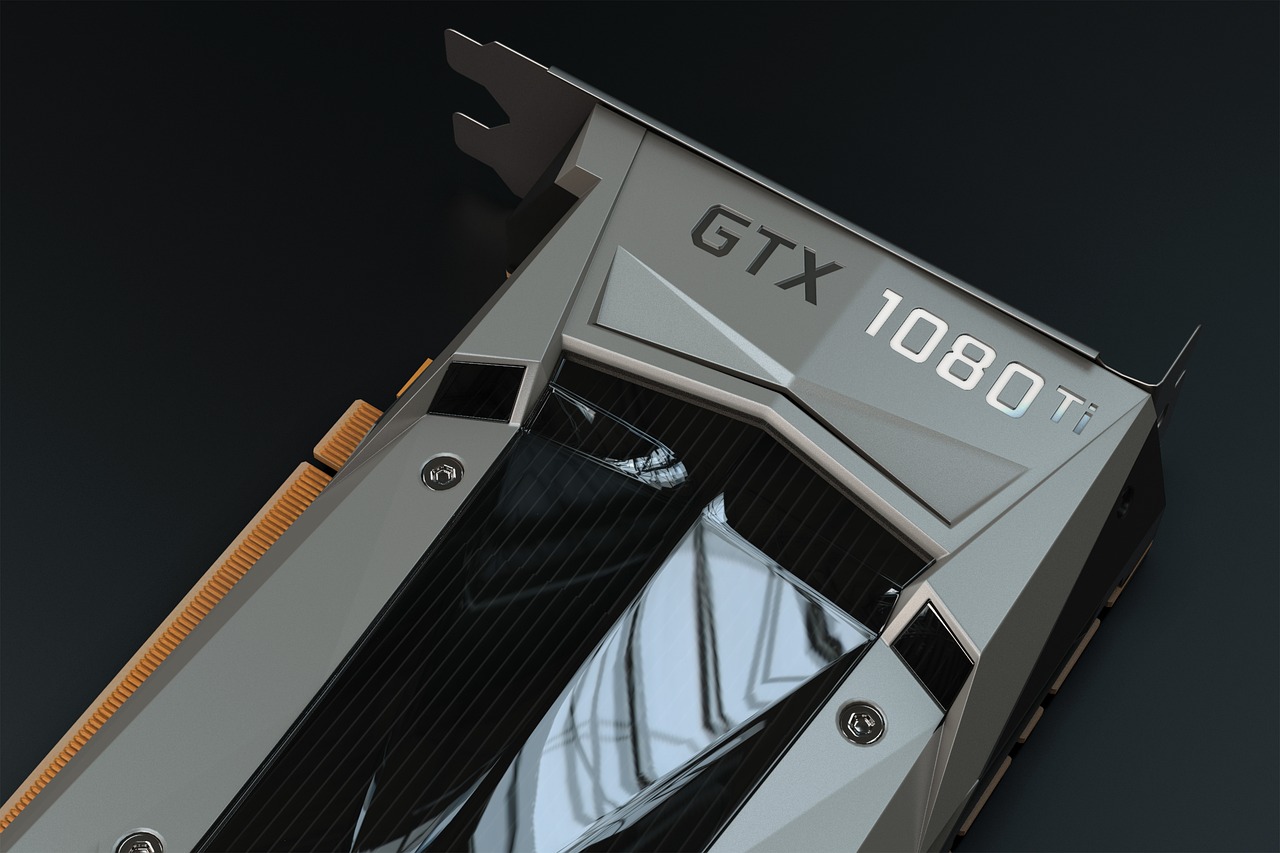
A clear, evergreen guide to choosing between free cloud GPUs and paid hardware for AI work—who each option fits, what paid tiers really unlock, and how to decide without overspending.
GPUs & AI Hardware for Beginners: Where to Start
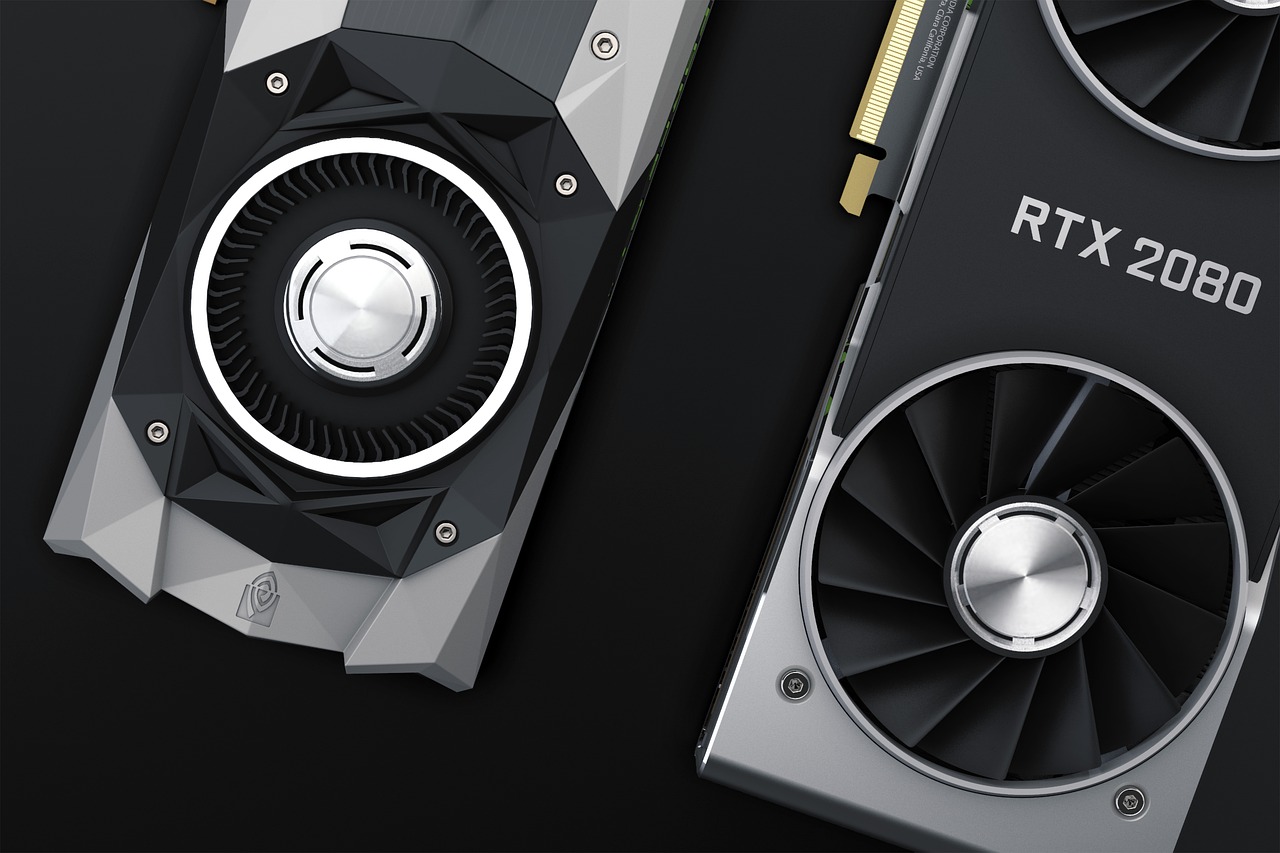
This practical guide explains what GPUs do for AI, what to look for when buying your first card, and which beginner-friendly models to consider across budgets.