
Free vs Paid Peripherals and Gadgets: What's Actually Worth Paying For
By Mag-Info Tech editorial · 2026-06-10
Introduction
Most people already own basic monitors, keyboards and accessories, but deciding whether to upgrade often comes down to marketing claims rather than clear benefits. Free or low-cost peripherals bundled with devices can handle everyday tasks, yet many professionals notice real friction—flickering screens, mushy key feel, tangled cables—after a few months. This guide compares well-known monitors, keyboards and accessories in durable, general terms, explains what free or entry-level models usually provide, and outlines the concrete differences paid upgrades deliver. The goal is to help you choose the right tool for your daily work without relying on inflated promises.
Monitors: When a basic display is enough and when you need more
A basic monitor that comes with a laptop or desktop often covers email, documents and casual browsing, but it rarely matches the comfort and clarity of a dedicated display. Entry-level monitors typically have TN or low-end IPS panels with narrow viewing angles, uneven backlighting and slow response times that cause eye strain during long sessions. If your work involves spreadsheets, code or design, even small differences in color accuracy and screen uniformity become noticeable over time.
Stepping up to a mid-range IPS or VA panel brings measurable improvements: wider viewing angles reduce color shift when you glance at the screen from the side, consistent backlighting removes distracting hotspots, and faster pixel response reduces motion blur during scrolling or video calls. For professionals who spend hours reading text or comparing data, these upgrades translate into less squinting and fewer headaches. If your budget allows, pairing a good monitor with a simple monitor arm can further reduce neck strain by positioning the screen at eye level without taking up desk space. The key is to identify the tasks that cause the most eye fatigue and match them to panel technology rather than chasing the highest specs.
Keyboards: Membrane versus mechanical and when typing comfort matters
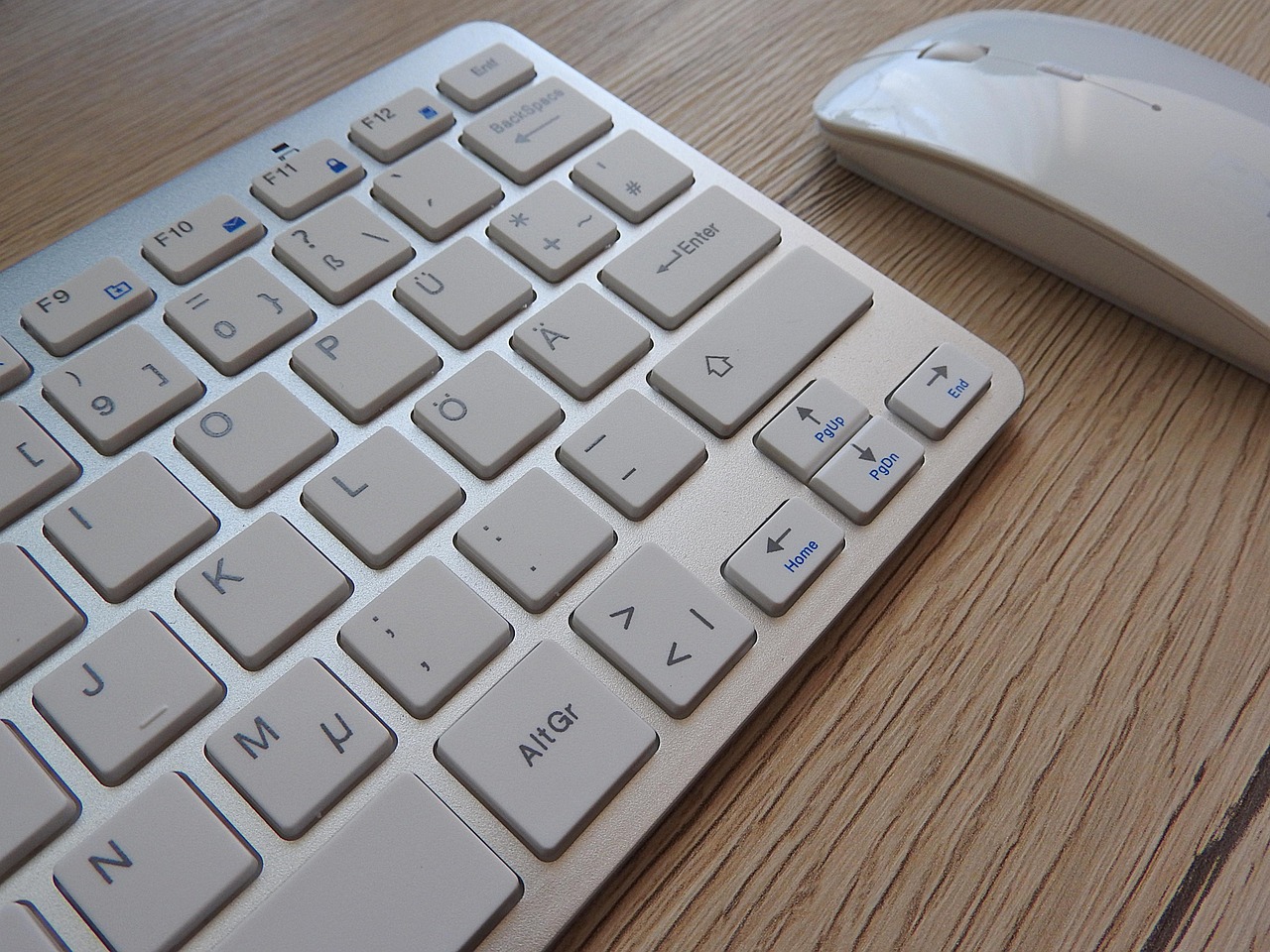
Most laptops and budget keyboards use membrane switches that feel mushy and lack tactile feedback, which can slow typists down and increase fatigue during long sessions. Mechanical keyboards, even at mid-tier prices, introduce distinct tactile bumps and audible clicks that help typists land each keystroke with confidence. The difference is most noticeable for writers, programmers and anyone who types more than a few hours per day.
Switch type matters as much as the overall build. Linear switches provide smooth keystrokes without tactile feedback, which some typists prefer for gaming or rapid input, while tactile switches offer a slight bump that reduces accidental keypresses during long documents. If you frequently attend video calls or stream, a quieter switch or a keyboard with sound-dampening foam can keep conversations clear without disturbing others. For shared workspaces, a keyboard with a detachable palm rest also improves ergonomics and reduces wrist strain over time. The practical takeaway is to prioritize switch feel and ergonomic design over extra features like RGB lighting, which rarely improve daily productivity.
Cables and adapters: Free versus reliable alternatives
Free cables that ship with devices can work in a pinch, but they often lack durability and proper shielding, leading to intermittent connections or slow data transfer. A basic USB-A to USB-C cable might charge a phone quickly but can drop frames during video calls or fail to sync large files reliably. Upgrading to a braided, shielded cable with proper certification reduces interference and extends lifespan, especially if you frequently plug and unplug devices.
For multi-device setups, a powered USB hub or a high-quality docking station can turn a single cable into a stable connection for monitors, keyboards and external drives. Cheap hubs without adequate power delivery can cause devices to disconnect or charge slowly, while a well-designed dock maintains stable connections even under load. If you routinely connect multiple peripherals, investing in a single reliable dock saves desk clutter and avoids the frustration of cables that wiggle loose.
Monitor stands and arms: Stability versus desk clutter
Many people stack books or use the flimsy stand that comes with a monitor, which can lead to wobbly screens and poor ergonomics. A dedicated monitor arm clamps to the desk or mounts under a workstation, allowing precise height and angle adjustments without taking up surface space. The stability difference is immediately clear when switching between documents and reference material, as the screen no longer shifts with every keystroke.
For dual-monitor setups, a sturdy arm with gas-spring balance keeps both displays aligned and reduces neck movement between screens. If your desk lacks grommet holes, look for a clamp that distributes pressure evenly to avoid scratching the surface. The ergonomic benefit—keeping the top of the screen at or slightly below eye level—compounds over months, reducing shoulder and neck tension.
Keyboard wrist rests and ergonomic accessories: Comfort versus cost
Wrist rests made of gel or memory foam can make long typing sessions more comfortable, but poorly designed rests can push wrists at awkward angles and cause strain. A contoured rest that matches the keyboard’s slope and height helps maintain a neutral wrist position, reducing pressure on nerves and tendons. If you already experience tingling or discomfort, pairing a good rest with a split or ergonomic keyboard can address root causes rather than masking symptoms.







Real results from MEFAI's AI. Get $50 off the Pro plan.
Sponsored · Past performance is not indicative of future results. Not financial advice.

For users who alternate between keyboard and mouse, a palm rest that spans the entire input area prevents reaching and reduces shoulder tension. The practical test is to observe whether your wrists stay straight when typing or if they bend upward, which often indicates the rest is too thick or angled incorrectly. Investing in an adjustable rest or a modular keyboard that integrates one can pay dividends in comfort without requiring a full setup overhaul.

Multi-port adapters and docking stations: Simplifying messy desks
A single USB-C cable can power a laptop, charge a phone, drive an external monitor and transfer files, but only if the adapter supports the full feature set of your device. Basic adapters often lack the power delivery or video bandwidth needed for stable dual-monitor setups or fast external storage. A dock with dedicated power delivery and certified cables ensures all peripherals remain connected even during heavy workloads.
For users who switch between work and personal devices, a universal dock with quick-release cables reduces setup time and avoids fumbling with multiple chargers. If you frequently present or collaborate, a dock that supports 4K output and Ethernet passthrough keeps video calls smooth and file transfers reliable. The main consideration is to match the dock’s bandwidth and power delivery to your most demanding peripheral rather than buying the cheapest option.
Wireless versus wired: Latency and reliability trade-offs
Wireless peripherals eliminate cable clutter but can introduce latency or interference that disrupts precise tasks like gaming or video editing. A wired keyboard or mouse offers instant response and zero lag, which is noticeable during fast-paced work or competitive applications. If you rely on keyboard shortcuts or gaming inputs, a wired connection ensures consistent performance without dropouts.
For general office work, a high-quality wireless peripheral with low-latency Bluetooth or a dedicated USB receiver can provide the convenience of a clean desk without sacrificing responsiveness. The key is to check latency specifications and user reviews for real-world performance rather than assuming all wireless devices perform equally. If you notice lag during video calls or typing, switching to a wired connection often resolves the issue immediately.

How to decide what to pay for and what to skip
Start by listing the tasks that cause the most friction: eye strain from a dim monitor, typing fatigue from a mushy keyboard, or repeated cable disconnections. Match those pain points to the peripherals that address them directly—better panel technology for monitors, tactile switches for keyboards, and certified cables for stable connections. Avoid upgrades that add features you won’t use, such as RGB lighting on keyboards or curved screens for spreadsheets.
Set a budget that prioritizes ergonomics and reliability over aesthetics. A mid-tier mechanical keyboard with tactile switches will last years and improve daily comfort, while a cheap membrane keyboard may need replacing sooner. Similarly, a monitor with consistent backlighting reduces eye strain over time, making it a worthwhile investment if you spend hours reading or coding. The durable choice is one that solves a real problem without chasing the latest trend.
Quick reference: What’s usually worth paying for
- Monitors: Upgrade to IPS or VA panels for color accuracy and viewing angles if you edit images, read long documents or spend hours in front of the screen.
- Keyboards: Choose mechanical switches with tactile feedback or linear options for gaming if typing comfort and speed matter to you.
- Cables and adapters: Buy braided, shielded cables and certified docks to prevent disconnections and slow transfers.
- Stands and arms: Use a monitor arm to improve posture and reduce desk clutter, especially in dual-monitor setups.
- Ergonomic accessories: Invest in a contoured wrist rest or ergonomic keyboard if you experience discomfort during long sessions.
- Wireless versus wired: Use wired connections for tasks that demand low latency; opt for wireless only if reviews confirm stable performance.
Conclusion
The line between free and paid peripherals often comes down to comfort, reliability and long-term ergonomics rather than raw performance. Basic monitors, keyboards and cables can handle light tasks, but professionals who spend hours at a desk quickly notice the difference when upgrading to better panel technology, tactile switches and stable connections. Start by identifying your biggest friction points, then match them to the right peripherals without overbuying features you won’t use. With durable, well-chosen tools, the investment pays off in reduced fatigue and fewer distractions, making the upgrade worthwhile for anyone serious about their daily work.
More in Hardware & Gadgets

Prime Day’s Hidden Hardware Deals: What Tech Buyers Should Know
Prime Day drops prices on CPUs, GPUs, laptops and accessories — but not all discounts are equal. Here’s how to spot real savings and avoid gimmicks.

The 2026 Tech IPO Wave: What SpaceX, Anthropic and OpenAI Mean for Investors and the Market
Three high-profile tech companies—SpaceX, Anthropic and OpenAI—are preparing IPOs in 2026, reshaping public markets and testing investor appetite for AI and space hardware.
Nvidia’s Vera CPUs Head to China as GPU Sales Remain Constrained
Nvidia has told Chinese customers Vera CPUs could ship as early as August, offering an alternative as GPU sales remain frozen under export rules.