
Peripherals & Gadgets Compared: Matching the Right Option to Your Needs
By Mag-Info Tech editorial · 2026-06-10
Why gadgets matter and how to pick the right ones
Whether you’re setting up a home office, equipping a team workspace, or upgrading a personal workstation, the right peripherals can change how you work. A mismatched monitor slows you down, an uncomfortable keyboard causes fatigue, and the wrong accessories clutter your desk. The key is matching the tool to your workload and environment. This guide compares leading monitors, keyboards, and essential accessories across four common profiles: solo creators, collaborative teams, budget-conscious buyers, and power users who demand performance. Use the criteria here to narrow your choices without relying on fleeting specs or trends.
Solo creators: screens, input and quiet focus
If you spend long hours alone—designing, writing, coding, or editing—your setup must support deep focus and ergonomic comfort. Start with a monitor that delivers accurate color and stable brightness without flicker, so your eyes stay fresh. Look for IPS panels with factory calibration and low blue-light modes; these reduce eye strain and maintain color consistency across long sessions. Pair it with a keyboard that feels responsive yet quiet, because solo work often happens in shared or quiet spaces. Mechanical switches with sound-dampening options or low-profile scissor-switch alternatives can reduce noise without sacrificing feel. Add a compact mouse with adjustable DPI and a comfortable grip, since precision and comfort matter more than extra buttons. Finally, a wired or high-quality wireless dock keeps cables tidy and ensures stable connections for peripherals.
For solo creators, the Dell UltraSharp series is a reliable choice for color-critical work, offering consistent factory calibration and multiple size options. Apple’s Pro Display XDR remains a premium reference for color accuracy and HDR performance, ideal for professionals who need reference-grade output. On the keyboard side, Keychron’s low-profile mechanical keyboards combine quiet switches with solid build quality, making them suitable for home offices and small studios. Logitech’s MX Master series offers ergonomic sculpting and customizable controls, perfect for designers and writers who rely on precision and comfort. These tools balance performance and comfort, helping solo creators maintain focus and reduce fatigue during long hours of work.
Collaborative teams: shared spaces, visibility and durability
When multiple people use the same desk or meeting room, your peripherals must be durable, easy to share, and quick to reconfigure. A large, high-resolution monitor with wide viewing angles ensures everyone sees the same content clearly, even from different positions. Look for 4K IPS panels with built-in speakers and multiple inputs so laptops, tablets, and phones can connect without swapping cables. A keyboard and mouse that support multi-device switching let users alternate between machines without reprogramming. Durability is critical—opt for spill-resistant keyboards and mice with reinforced cables to withstand frequent handling. Cable management accessories like clip-on sleeves or under-desk trays keep shared spaces tidy and prevent tripping hazards.
For team environments, LG’s UltraFine 4K displays are popular for their sharp resolution and wide viewing angles, making them ideal for conference rooms and shared desks. Dell’s UltraSharp 4K monitors also offer excellent color consistency and multiple connectivity options. On the input side, Logitech’s MX Keys keyboard supports multi-device pairing and has a comfortable, low-profile design suitable for shared use. The Logitech MX Master 3S mouse offers advanced tracking and customizable buttons, making it easy for different users to switch without losing productivity. These peripherals prioritize durability, ease of use, and flexibility, ensuring teams can collaborate smoothly without technical friction.

Budget-conscious buyers: value without compromise
When cost is a priority, the goal is to maximize performance per dollar without sacrificing essential features. Start with a monitor that offers solid color accuracy and resolution at an affordable price—look for IPS panels with sRGB coverage above 95% and flicker-free backlighting to reduce eye strain. Avoid TN panels, which offer poor viewing angles and color accuracy. For keyboards and mice, prioritize models with good build quality and essential features like backlighting or programmable keys, rather than gimmicks. Wired options often cost less and avoid battery or connectivity issues, making them a practical choice for tight budgets. Accessories like cable organizers or basic stands can improve ergonomics without adding significant cost.
For budget buyers, Acer’s Nitro and ASUS’s TUF series offer 1080p or 1440p IPS monitors with solid color performance and refresh rates suitable for everyday use. ViewSonic’s VX series provides affordable, color-accurate displays ideal for students and office workers. On the input side, Redragon’s budget mechanical keyboards deliver tactile feedback at a fraction of premium brands’ prices. Microsoft’s wired or wireless keyboards and mice offer reliable performance and ergonomic design without premium pricing. These options prove that you don’t need to spend heavily to get reliable, functional peripherals that support daily tasks.
Power users: speed, precision and customization
Power users—whether engineers, traders, or content creators—demand the fastest response times, highest precision, and deepest customization. Start with a monitor that combines high refresh rates with excellent color accuracy and low input lag. Look for OLED or high-refresh IPS panels with adaptive sync and factory-calibrated color, so fast-moving visuals stay smooth and accurate. Pair it with a mechanical keyboard that offers hot-swappable switches, customizable keycaps, and programmable macros, enabling rapid workflows and repetitive tasks. A gaming-grade mouse with adjustable DPI, high-precision sensors, and customizable weights lets you fine-tune tracking for pixel-perfect accuracy. Add a dedicated dock or multi-port hub to manage multiple high-bandwidth devices without bottlenecks.
For power users, ASUS’s ROG Swift and Alienware’s AW series deliver high-refresh 1440p or 4K displays with excellent color and adaptive sync, ideal for fast-paced work and creative tasks. BenQ’s PD series offers factory-calibrated 4K monitors with low input lag, perfect for video editors and designers. On the input side, Keychron’s Q-series mechanical keyboards provide hot-swappable switches and customizable layouts, while Razer’s Huntsman series offers optical switches for near-instant actuation. Logitech’s G Pro X Superlight mouse is a favorite among power users for its ultra-lightweight design and precise sensor. These tools cater to demanding workflows, enabling speed, precision, and control.



Real results from MEFAI's AI. Get $50 off the Pro plan.
Sponsored · Past performance is not indicative of future results. Not financial advice.


Monitors: how to choose the right display for your profile
Monitors are the centerpiece of any workstation, so your choice should align with your workload. For solo creators, prioritize color accuracy and eye comfort—look for IPS panels with factory calibration and low blue-light modes. For teams, focus on size and visibility—4K or 1440p IPS panels with wide viewing angles ensure everyone sees the same content clearly. Budget buyers should avoid TN panels and prioritize sRGB coverage above 95% and flicker-free backlighting. Power users need high refresh rates, low input lag, and adaptive sync to keep up with fast workflows.
When evaluating monitors, consider panel type first: IPS for color accuracy and viewing angles, VA for deeper blacks and higher contrast, and TN for raw speed. Resolution matters too—1080p is fine for general use, but 1440p or 4K improves productivity for detailed tasks. Refresh rate is critical for power users; 120Hz or higher keeps motion smooth. Connectivity is often overlooked: ensure your monitor has the ports you need (HDMI, DisplayPort, USB-C) and supports the cables you already own. Finally, ergonomics—height, tilt, and swivel adjustments—reduce strain during long hours.
Keyboards: typing comfort, noise and customization
A keyboard can make or break your daily experience. For solo creators working in quiet spaces, low-profile mechanical or scissor-switch keyboards offer a balance of comfort and quiet. Teams benefit from spill-resistant, multi-device keyboards that can handle frequent use and quick transitions between devices. Budget buyers should prioritize durable construction and essential features like backlighting over gimmicks. Power users need mechanical switches with customizable layouts, hot-swappable switches, and programmable macros to match their workflow.
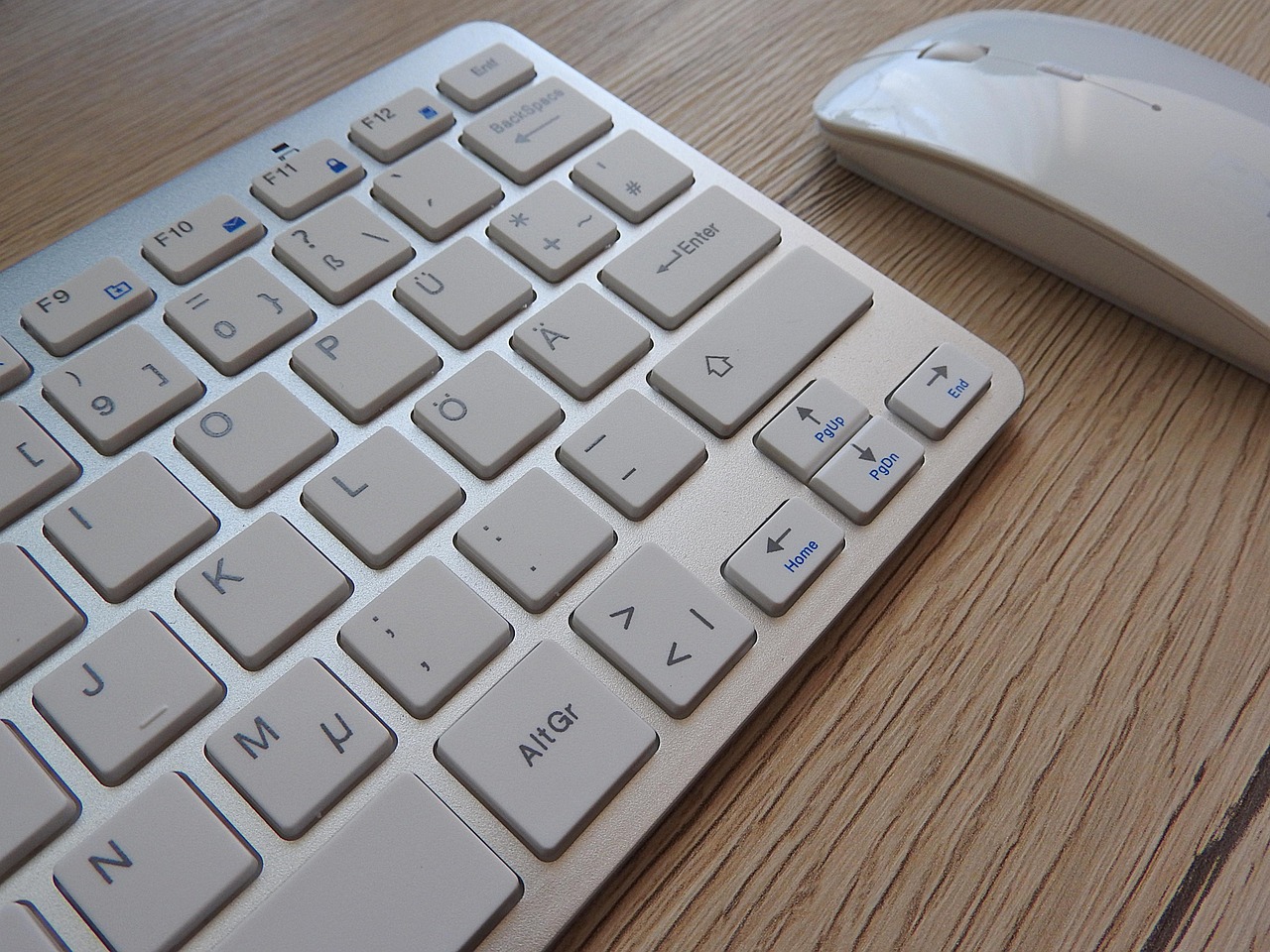
When choosing a keyboard, start with the switch type: linear for fast typists, tactile for feedback, and clicky for audible confirmation. Low-profile switches reduce fatigue, while full-size mechanical boards offer more customization. Wireless options add convenience but require stable Bluetooth or good battery life. Backlighting is useful in dim environments, but RGB is unnecessary unless you enjoy personalization. Build quality—materials, keycap profile, and stabilizers—affects longevity and feel. Finally, consider layout: tenkeyless saves desk space, while full-size includes a numpad for data entry.
Accessories: the unsung heroes of productivity
Accessories may seem minor, but they solve real problems. Cable organizers keep desks tidy and prevent tangles. Monitor arms free up desk space and improve ergonomics. Laptop stands raise screens to eye level, reducing neck strain. For teams, multi-device docks simplify switching between machines. Power users benefit from high-speed hubs and card readers for fast data transfer. Even small items like wrist rests or screen cleaners can improve comfort and maintenance.
When selecting accessories, think about your biggest pain points. If cables are a mess, clip-on sleeves or under-desk trays help. If ergonomics are a concern, a monitor arm or laptop stand can make a big difference. For teams, a multi-port dock ensures everyone can connect quickly without fumbling with adapters. Power users should prioritize accessories that reduce latency, like high-speed USB hubs or card readers with fast transfer rates. The right accessories don’t just add convenience—they remove friction from your workflow.
Putting it all together: a quick decision guide
Start by identifying your primary profile—solo, team, budget, or power user. Then, match your monitor to your workload: color accuracy for creators, size and visibility for teams, affordability for budgets, and speed for power users. Choose a keyboard based on your typing environment: quiet and comfortable for solo users, durable and multi-device for teams, essential and affordable for budgets, and customizable and fast for power users. Don’t overlook accessories—they solve real problems and improve your setup incrementally.
If you’re still unsure, try before you buy. Visit a store to test keyboards and mice for comfort and feel. Borrow a monitor for a day to see how it fits your workflow. Remember, the best gadget is the one that disappears into your routine—reliable, comfortable, and unobtrusive. With the right combination, your peripherals will support your work instead of getting in the way.
More in Hardware & Gadgets

Prime Day’s Hidden Hardware Deals: What Tech Buyers Should Know
Prime Day drops prices on CPUs, GPUs, laptops and accessories — but not all discounts are equal. Here’s how to spot real savings and avoid gimmicks.

The 2026 Tech IPO Wave: What SpaceX, Anthropic and OpenAI Mean for Investors and the Market
Three high-profile tech companies—SpaceX, Anthropic and OpenAI—are preparing IPOs in 2026, reshaping public markets and testing investor appetite for AI and space hardware.
Nvidia’s Vera CPUs Head to China as GPU Sales Remain Constrained
Nvidia has told Chinese customers Vera CPUs could ship as early as August, offering an alternative as GPU sales remain frozen under export rules.