
Peripherals & Gadgets for Beginners: Where to Start
By Mag-Info Tech editorial · 2026-06-10
Why peripherals matter when you’re just starting
When you’re new to technology, the first purchases often feel overwhelming. A monitor, keyboard or mouse can look similar online, yet perform very differently once you start using them. The right peripherals don’t just change how your computer looks—they change how comfortable you feel, how fast you work, and how long you can focus without fatigue. A dull, flickering screen or a mushy keyboard can turn a simple task into a daily frustration. For beginners, the goal isn’t to buy the most expensive gear right away, but to choose options that feel natural and help you build confidence as you learn. Start with what directly affects your daily use: the display you stare at, the keys you press, and the pointer you guide.
The peripherals you pick also shape your habits. A responsive keyboard encourages typing practice, a clear monitor reduces eye strain during long sessions, and a reliable mouse makes navigation feel effortless. For students, remote workers, or casual creators, these tools become part of your workflow from day one. Instead of chasing trends or flashy specs, focus on comfort, responsiveness, and reliability. Over time, as your skills grow, you’ll know exactly what to upgrade—and what to keep. This guide walks through the essential peripherals beginners should consider first, with clear recommendations and practical advice to avoid common mistakes.
Monitors: what to look for before you buy
When choosing your first monitor, size and resolution are the two most important starting points. A 22 to 27-inch screen is large enough for comfortable reading and multitasking without overwhelming a small desk. Resolution matters just as much: a 1080p (Full HD) display is sharp enough for everyday use, easy on hardware, and widely compatible with budget systems. Larger screens benefit from higher resolutions like 1440p or 4K, but only if your computer can handle them smoothly. Beginners should avoid confusing marketing terms like “4K UHD” or “QHD” until they understand their system’s capabilities. Instead, look for a display with clear text, good color consistency, and minimal flicker.
Panel type affects how the screen looks and feels. IPS panels offer wide viewing angles and accurate colors, making them ideal for general use, study, or media consumption. TN panels are cheaper and faster for gaming but often have weaker colors and narrow viewing angles. VA panels sit in between, offering better contrast but occasional ghosting in fast scenes. For beginners, an IPS monitor is the safest choice because it delivers a balanced experience without surprises. Also check for built-in features like flicker-free backlighting and blue light filters, which reduce eye strain during long sessions. Avoid monitors with aggressive “gaming” branding if you’re not focused on competitive play—those often include unnecessary features that add cost without benefit.
Keyboards: mechanical vs. membrane and what beginners should choose
Keyboards fall into two main categories: mechanical and membrane. Mechanical keyboards use individual switches under each key, offering tactile feedback, audible clicks (in some models), and longer durability. Membrane keyboards rely on a single rubber sheet, making them quieter and cheaper, but less responsive over time. For beginners, the choice depends on your priorities. If you plan to type a lot—whether for coding, writing, or note-taking—a mechanical keyboard can help you build muscle memory and reduce fatigue. However, if you share a workspace or live with others, a membrane or “quiet” mechanical option may be more considerate.

Switch types add another layer of choice. Linear switches feel smooth with no bump, making them popular for gaming. Tactile switches provide a noticeable bump when pressed, which many typists prefer for feedback. Clicky switches include an audible click, which can be satisfying but may disturb others. Beginners should try different switches in person if possible, or choose a well-reviewed “beginner-friendly” model with a medium actuation force. Avoid cheap mechanical keyboards with inconsistent build quality—they can feel mushy and break quickly. A good starter mechanical keyboard balances durability, comfort, and reasonable noise levels, while a membrane keyboard remains a practical, low-cost option for casual use.
Mice: wired vs. wireless, ergonomics and grip styles
A mouse is your primary tool for navigation, so comfort and responsiveness matter more than flashy RGB lighting. Wired mice offer zero latency and reliable performance, making them ideal for competitive gaming or budget setups. Wireless mice eliminate cable clutter and work well for general use, but battery life and occasional lag can be concerns. For beginners, a wired mouse is the safest bet unless you specifically need wireless convenience. Battery-free wireless mice that use rechargeable cells are a good middle ground, combining reliability with tidy desks.
Grip style also plays a role in comfort. Palm grippers rest the whole hand on the mouse, making them comfortable for long sessions. Claw grippers use fingertips and the palm’s edge, offering faster movement for gaming. Fingertip grippers use only the fingertips, ideal for small, precise adjustments. Most beginners benefit from a contoured, palm-grip mouse designed for medium to large hands. Avoid ultra-compact or aggressively shaped mice unless you have specific ergonomic needs. A good starter mouse should feel natural in your hand, with a responsive sensor and durable switches that don’t wear out after a few months.
Monitor selection checklist for beginners
Before buying a monitor, run through a simple checklist to avoid costly mistakes. First, measure your desk space—especially depth—to ensure the screen fits without crowding your keyboard or causing glare from windows. Second, check your computer’s output ports. HDMI and DisplayPort are common, but some budget laptops only offer USB-C or mini-HDMI, which may require an adapter. Third, consider your usage: if you watch movies or edit photos, prioritize color accuracy and wide viewing angles. If you play casual games, look for a 75Hz or higher refresh rate and low input lag. Fourth, avoid glossy screens if you work near windows, as reflections can be distracting. Lastly, read user reviews for reports of dead pixels, backlight bleed, or inconsistent quality control—these issues are common in cheaper models and can ruin the experience.
A practical starting point is a 24-inch 1080p IPS monitor with built-in blue light filters and VESA mount support. This size and resolution deliver sharp text, good color consistency, and enough screen real estate for multitasking. VESA support allows you to mount the monitor later if you decide to free up desk space. If you need more workspace, a 27-inch 1440p IPS monitor offers a noticeable upgrade in clarity and comfort without straining most mid-range systems. Avoid 4K monitors as a first purchase unless you’re certain your hardware can drive them smoothly. Also skip ultrawide or curved screens at this stage—they’re niche and can complicate window management for beginners.







Real results from MEFAI's AI. Get $50 off the Pro plan.
Sponsored · Past performance is not indicative of future results. Not financial advice.

Keyboard selection checklist for beginners
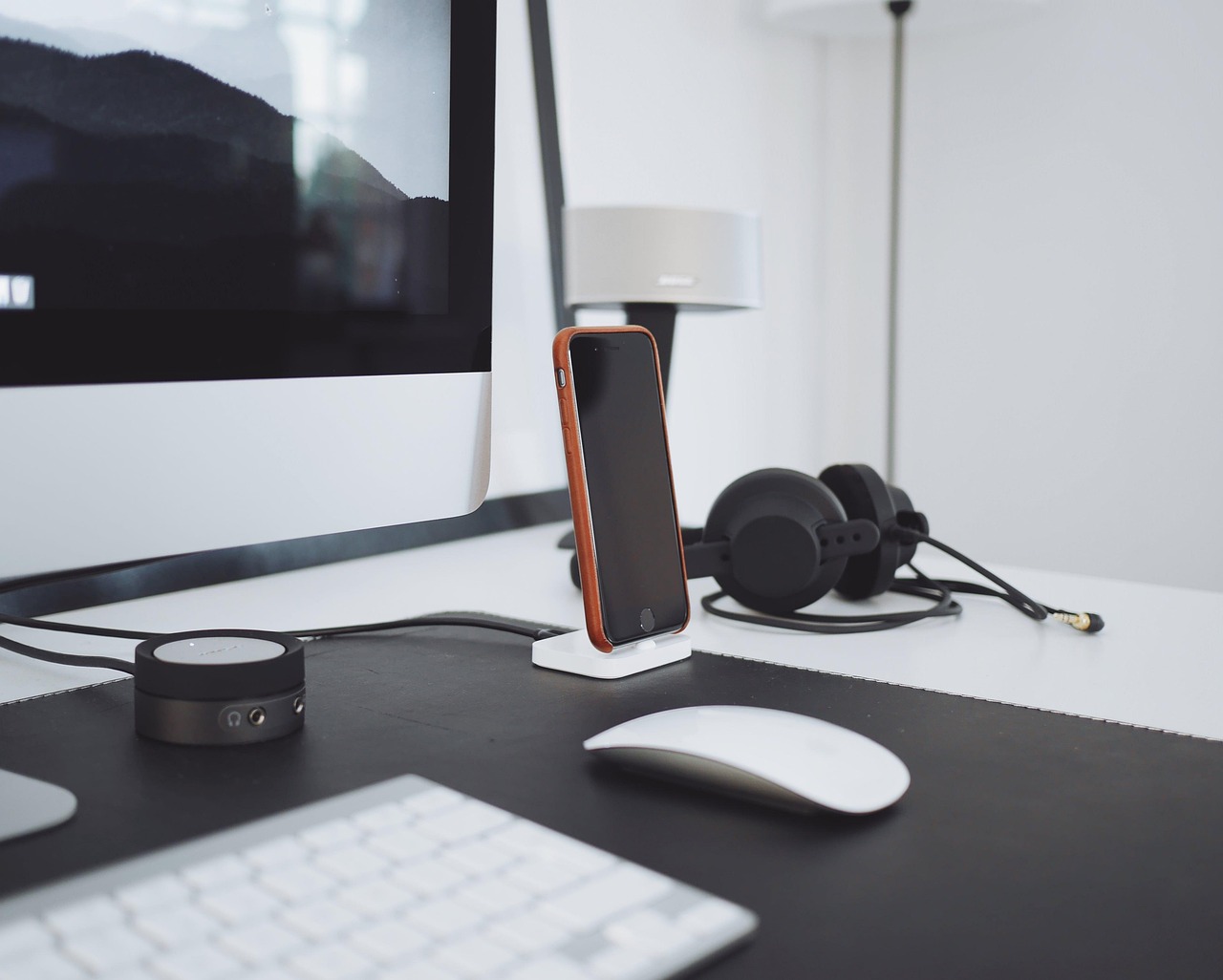
Start by deciding between mechanical and membrane. If you type often, a mechanical keyboard is worth the investment for comfort and durability. If noise or cost is a concern, a membrane or low-profile mechanical keyboard is a reasonable alternative. Next, consider your typing environment. Shared spaces or late-night work call for quiet switches or a membrane keyboard. Private setups allow more flexibility. Then, check the layout and size. Full-sized keyboards include a numpad, tenkeyless (TKL) keyboards remove it to save space, and 60% keyboards shrink further but require learning layers. For beginners, a TKL or full-sized keyboard strikes the best balance between functionality and desk footprint.
Switch choice comes next. Linear switches (like Red or Black) feel smooth and are often used for gaming. Tactile switches (like Brown or Clear) offer feedback for typing. Clicky switches (like Blue or White) provide audible clicks but can be noisy. If you’re unsure, choose a “silent tactile” or “quiet click” option to reduce disturbance. Build quality matters too—cheap plastics flex, keycaps wear out, and internals can fail within months. Look for keyboards with PBT keycaps (more durable than ABS) and solid housings. Avoid gimmicky “gaming” keyboards with excessive lighting or software bloat unless you genuinely want those features. A clean, well-built keyboard with a comfortable layout is all a beginner truly needs.
Mouse selection checklist for beginners
Begin by matching the mouse to your hand size and grip style. Most manufacturers publish hand-size guidelines—choose a mouse labeled “medium” or “large” if you have average to bigger hands. Next, decide between wired and wireless. Wired mice are reliable and lag-free, ideal for gaming or budget builds. Wireless mice offer convenience but require charging or battery replacement. For beginners, a wired or rechargeable wireless mouse is the safest choice. Sensor resolution (measured in DPI) is less critical at this stage—most modern mice default to 800–1600 DPI, which is plenty for general use.
Ergonomics and build quality round out the checklist. A contoured shape that fits your palm reduces fatigue during long sessions. Avoid mice with overly aggressive angles or slippery coatings. Check reviews for reports of double-clicking, sensor inconsistency, or durability issues—these problems plague many cheap models. A good starter mouse should feel solid, respond instantly, and not slip during use. If you plan to game casually, a mouse with programmable buttons can be useful, but don’t prioritize it over comfort and reliability. For most beginners, a simple, well-built wired mouse with a comfortable shape is all you need to get started.
Accessories that actually help beginners
Beyond the core trio of monitor, keyboard, and mouse, a few simple accessories can improve your setup without clutter. A basic laptop stand elevates your screen to eye level, reducing neck strain and freeing up desk space underneath. A wired or wireless webcam with a privacy shutter is useful for video calls, especially if you’re studying or working remotely. A compact USB hub or docking station helps if your laptop has limited ports, allowing you to connect multiple peripherals without swapping cables constantly. Cable organizers or Velcro ties keep your workspace tidy and reduce distractions.
For comfort, a wrist rest can help during long typing sessions, but only if your keyboard and posture are already aligned correctly—it’s not a fix for poor ergonomics. A small desk fan or ambient light can reduce eye strain in poorly lit rooms. Noise-canceling headphones are helpful if you share a space or need focus during calls. Avoid buying gimmicks like RGB mousepads, macro keypads, or “gaming” branded accessories unless you have a specific need. The goal is to keep your setup clean, comfortable, and distraction-free so you can focus on learning and creating.
How to avoid common beginner mistakes
The most frequent mistake beginners make is buying peripherals based on looks or marketing instead of fit and function. A flashy RGB keyboard won’t make you type faster, and a curved ultrawide monitor won’t help you study better. Another pitfall is ignoring ergonomics—buying a tiny keyboard, a glossy monitor, or a mouse that doesn’t fit your hand can lead to discomfort and even injury over time. Don’t assume that more expensive always means better; many mid-range peripherals offer the best balance of performance and value.
Another trap is overcomplicating your setup too soon. Resist the urge to buy niche gear like mechanical keyboards with rare switches, high-refresh-rate gaming monitors, or multi-device wireless mice until you understand your actual needs. Start simple, use what you buy for a few weeks, and only then decide what to upgrade. Also avoid buying peripherals that require proprietary software unless you’re comfortable installing drivers and updates. Stick to plug-and-play options or widely supported standards like USB HID. Finally, don’t ignore return policies—buy from retailers with easy returns so you can exchange a product if it doesn’t meet your expectations.
Building your first setup: a practical starter plan
If you’re starting from scratch, here’s a practical, budget-conscious plan that covers the essentials. Begin with a 24-inch 1080p IPS monitor for clear, comfortable viewing. Pair it with a tenkeyless mechanical keyboard featuring quiet tactile switches—this gives you the benefits of mechanical typing without the numpad if space is tight. Add a wired mouse with a contoured palm grip for reliable navigation. Include a basic laptop stand to improve posture and desk ergonomics. This combination costs less than buying three separate “gaming” bundles and delivers a clean, functional setup that grows with you.
Once you’re comfortable, you can upgrade one piece at a time. If you find yourself typing for hours daily, consider a full-sized mechanical keyboard with PBT keycaps. If you need more screen space, upgrade to a 27-inch 1440p IPS monitor. If you move to a shared space, swap the wired mouse for a rechargeable wireless model with low DPI switching. The key is to make deliberate upgrades based on real usage, not speculation. Keep your setup minimal, reliable, and ergonomic—this foundation will serve you well whether you’re learning to code, studying, or working remotely.
More in Hardware & Gadgets

Prime Day’s Hidden Hardware Deals: What Tech Buyers Should Know
Prime Day drops prices on CPUs, GPUs, laptops and accessories — but not all discounts are equal. Here’s how to spot real savings and avoid gimmicks.

The 2026 Tech IPO Wave: What SpaceX, Anthropic and OpenAI Mean for Investors and the Market
Three high-profile tech companies—SpaceX, Anthropic and OpenAI—are preparing IPOs in 2026, reshaping public markets and testing investor appetite for AI and space hardware.
Nvidia’s Vera CPUs Head to China as GPU Sales Remain Constrained
Nvidia has told Chinese customers Vera CPUs could ship as early as August, offering an alternative as GPU sales remain frozen under export rules.